
Push to Talk.
Prompt to Build.
Turn your iPhone into a walkie-talkie for AI coding.
A wireless microphone for your Mac.
See how it works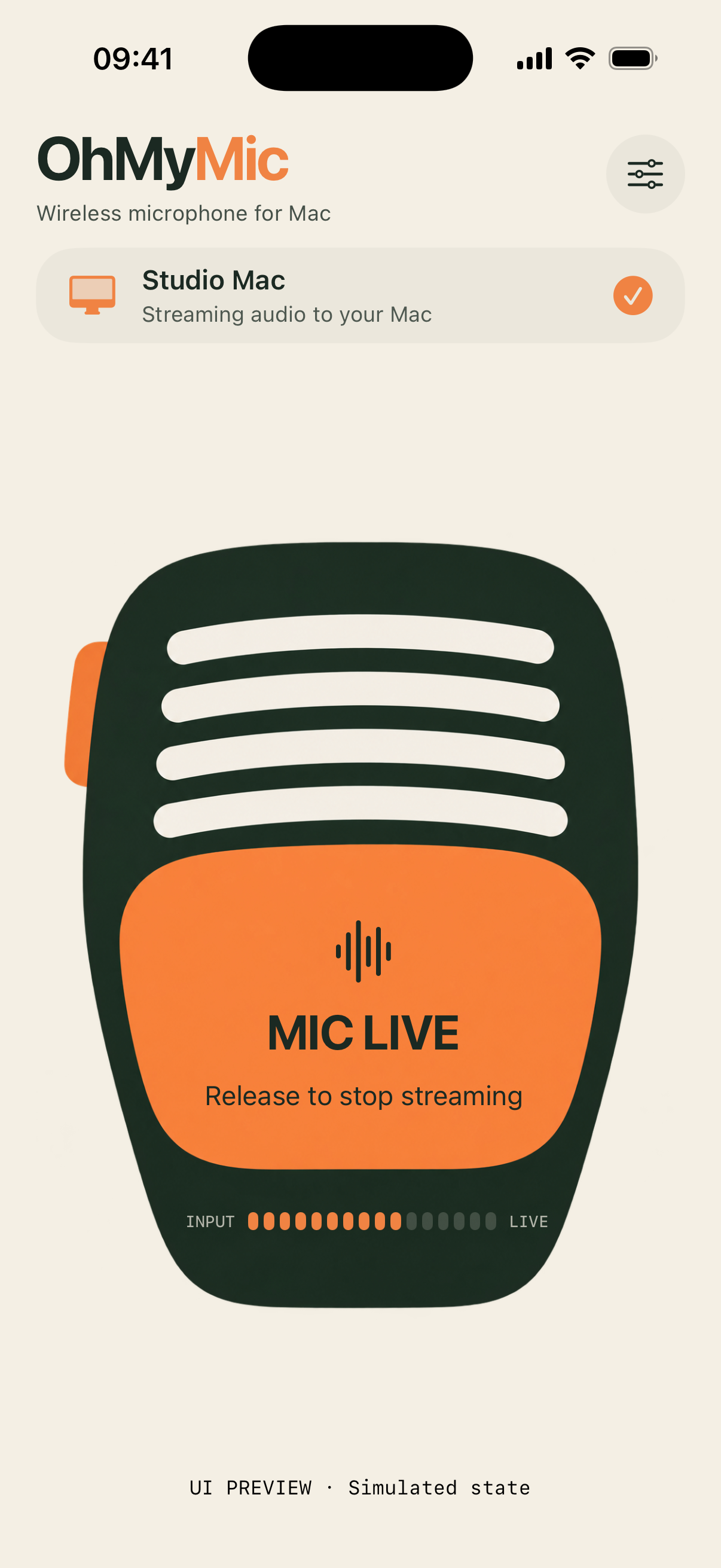
How it works
-
Pair your iPhone
Connect both devices to the same local network. Scan the QR code in OhMyMic Bridge and confirm that the six-digit codes match.
-
Choose your microphone
In the Mac app you want to use, select OhMyMic as the microphone. Keep listening on your usual speakers or headphones.
-
Talk from your iPhone
Tap to start and tap again to stop, or choose Hold to Talk in the iPhone app. Keep OhMyMic open while you speak.
Beta in preparation
We’re preparing the first beta for iPhone and Mac. Public downloads will open after first-time setup has been tested.
Audio stays on your network
OhMyMic encrypts audio between your iPhone and Mac and saves no recordings. The Mac app you choose handles the audio it receives.